How can I use AzureAD with Fixably?
This article is a step-by-step guide to help Fixably Administrators enable AzureAD authentication and secure sign-on in your Fixably environment.

Written by Annukka Matilainen
Updated at October 20th, 2026
Table of Contents
First Steps
- AzureAD authentication is not available with all subscription plans. Please reach out to your Customer Success Manager for more information.
- Fixably Support must enable AzureAD in your environment before a company administrator follows the settings below.
Enabling AzureAD
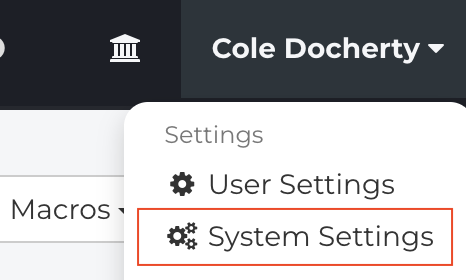
- From the Fixably Home Screen, click on your User Name menu and then System Settings.
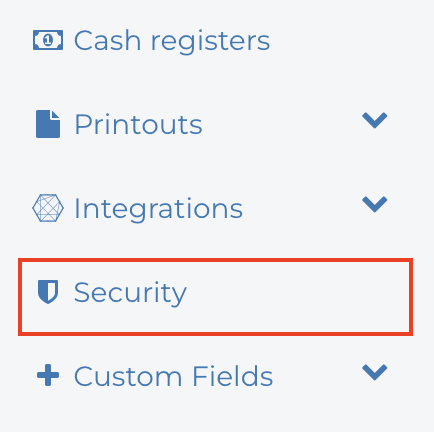
- From the settings menu, click Security.
- Under Select third-party authentication, select AzureAD.

- Login to your company's Microsoft Azure account.
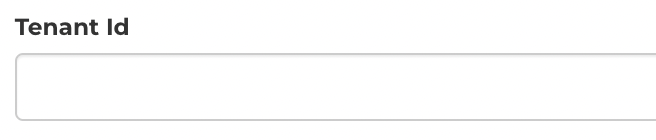
- From the Overview page, copy the Directory ID to the Tenant ID field in Fixably.
- Copy the Application ID to the Client ID field in Fixably.

- From the Certificates & secrets page, click New client secret. Add a description and Save. Copy the value from Azure to the Client Secret field in Fixably.

- If applicable, fill in the Scope field. This can also be left empty.

- Clicking Disables default login method will disable the default login method where the User is prompted for a Username and Password.

- Clicking Account required before login will require a User account to exist in the system before the User can use the AzureAD account to login.

- When complete, click Save Settings.

Always ask for Microsoft credentials (shared devices)
By default, Microsoft signs a user in silently whenever the browser already holds a Microsoft session. On a shared device, such as a front-desk iPad in Dallas that several employees use, the next person can end up in Fixably as whoever signed in before them. The Always ask for Microsoft credentials option, in the same AzureAD section of the Security settings, closes that gap:
- Every click on Sign in with Microsoft prompts for the Microsoft account and password, even when the browser already has an active Microsoft session.
- Logging out of Fixably also ends the Microsoft session in that browser, so the next sign-in always starts fresh.
When the option is off, Microsoft sign-in works as before, and only devices that have been marked as shared get the credential prompt and the Microsoft sign-out.
- Under Select third-party authentication, with AzureAD selected, switch on Always ask for Microsoft credentials.

- Copy the value shown in the Sign-out redirect URI field. This is your Fixably login address, for example
https://northstar.fixably.com/en/login. Copy it rather than typing it: Microsoft only accepts an exact match. - In the Microsoft Entra admin center, open the app registration you created for Fixably, go to Authentication, and under the Web platform add the copied address to Redirect URIs. Do not use the "Front-channel logout URL" field for this; Microsoft checks the sign-out return address against the Redirect URIs list.
- Save the app registration, then click Save Settings in Fixably.
If the sign-out redirect URI is not registered, users are still signed out of Microsoft when they log out of Fixably, but they land on Microsoft's own signed-out page instead of returning to the Fixably login page.
Two things to keep in mind:
- Ending the Microsoft session signs the browser out of Microsoft entirely, including Outlook on the web, Teams and any other Microsoft app open in that browser. That is the right behavior for a shared counter device; for employees working on their own computers, consider whether a prompt at every Fixably sign-in is what you want.
- A session that Fixably restored from "remember me" is not signed out of Microsoft at logout, but the credential prompt on the next sign-in still protects the device.
User Sign-in with AzureAD Enabled
- Once configured, Fixably will replace the traditional Username and Password fields with a Sign in with Microsoft button.

- The User can sign into your Fixably environment using their company AzureAD credentials.