How can I adjust the Unit Received Date and Time prior to creating a GSX repair?
This article is a step-by-step walk-through to help Technicians efficiently use Fixably to adjust the Unit Received Date and Time before creating a GSX repair.

Written by Annukka Matilainen
Updated at May 19th, 2026
- From the Device section of the Order, click the Gear menu.
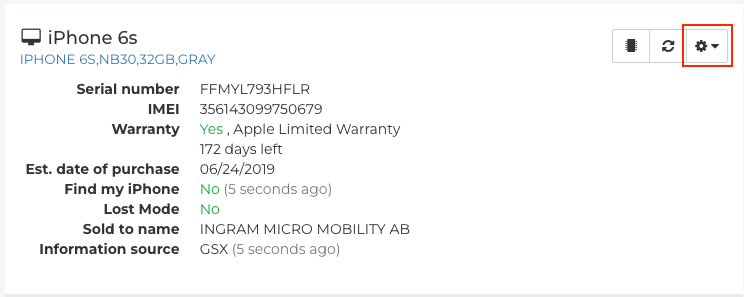
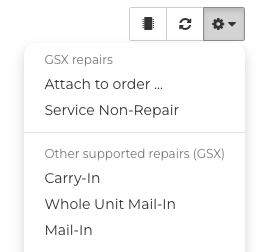
- From the list, select the appropriate Repair Type.
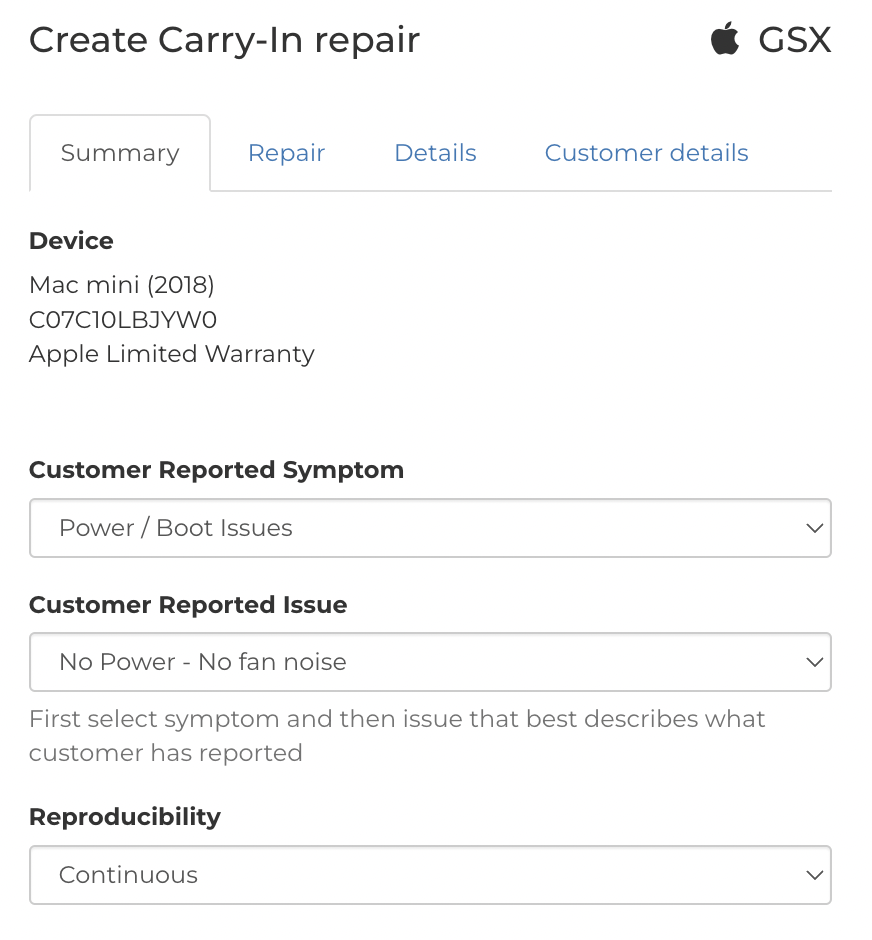
- Under the Summary tab, the Coverage, Symptom, Issue and Reproducibility you selected when adding the Part to the Order will be automatically entered for you.
- Under the Details tab, you can adjust the Unit Received Date/Time.
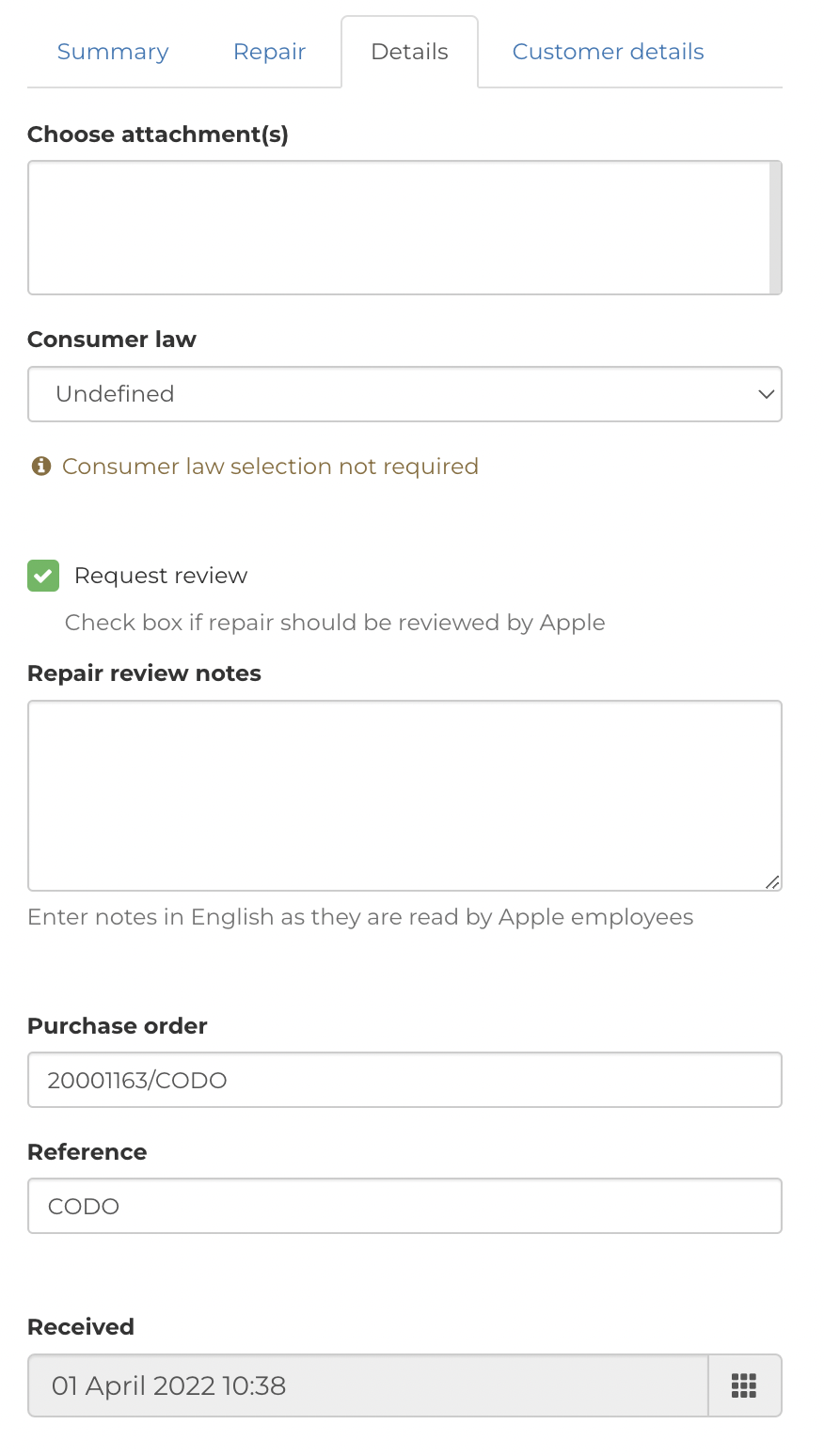
- Under Received, click the Grid icon to adjust the Unit Received Date and Time.

- Select the Date.
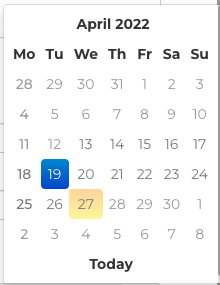
- Select the Hour.
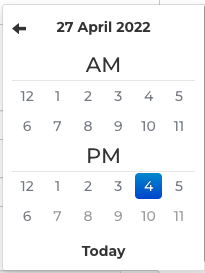
- Select the Minute.
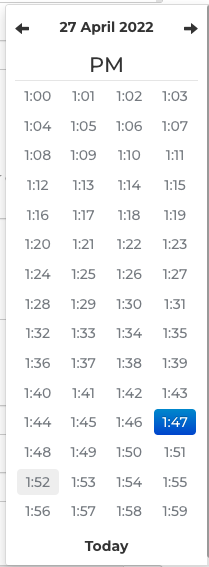
- Under Received, the updated Unit Received Date and Time will be listed.

- Continue completing the GSX repair as required.