How do I add new Products in Fixably?
This article guides you through creating new Products in Fixably.

Written by Annukka Matilainen
Updated at May 19th, 2026
1. Click on New Product from the Fixably Home Screen to bring up the New Product pane.
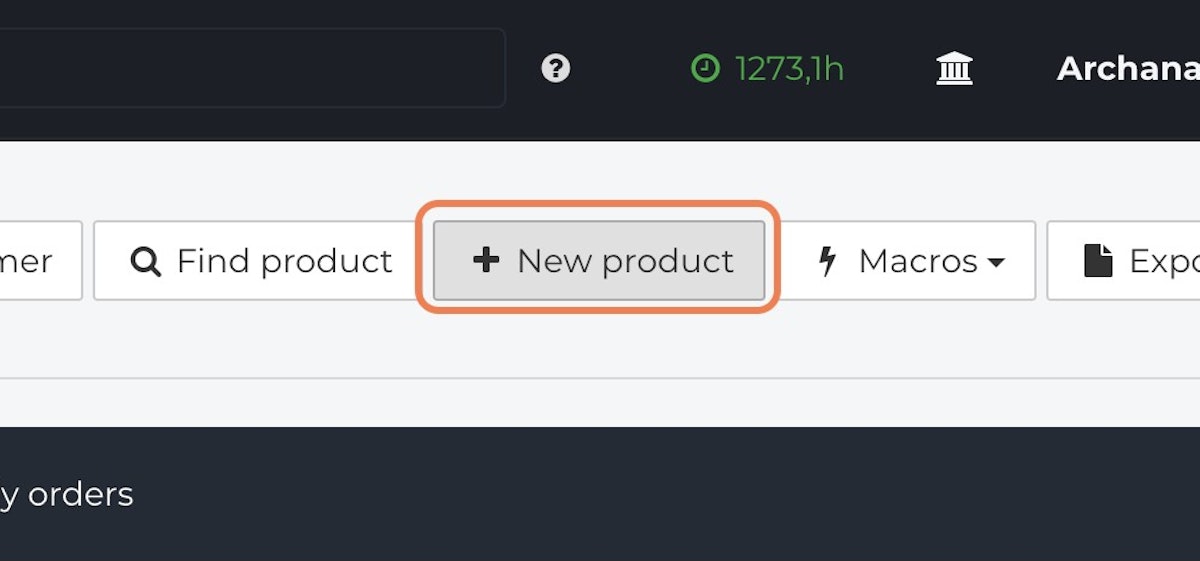
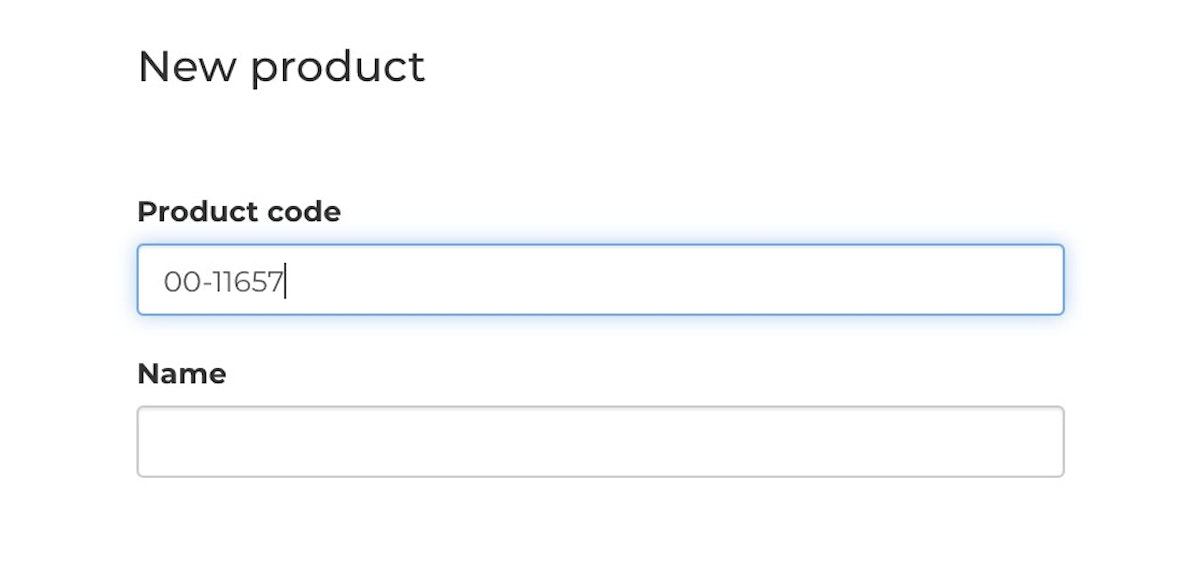
2. Enter the Product Code.
3. Enter the Product Name.
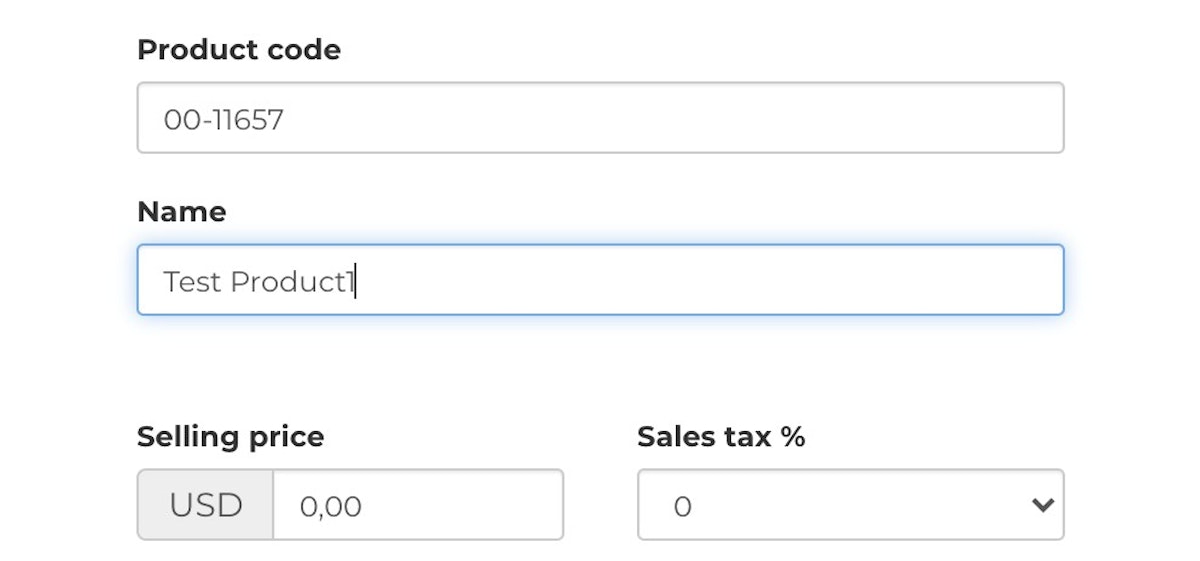
4. Add the appropriate costs and tax percentage.
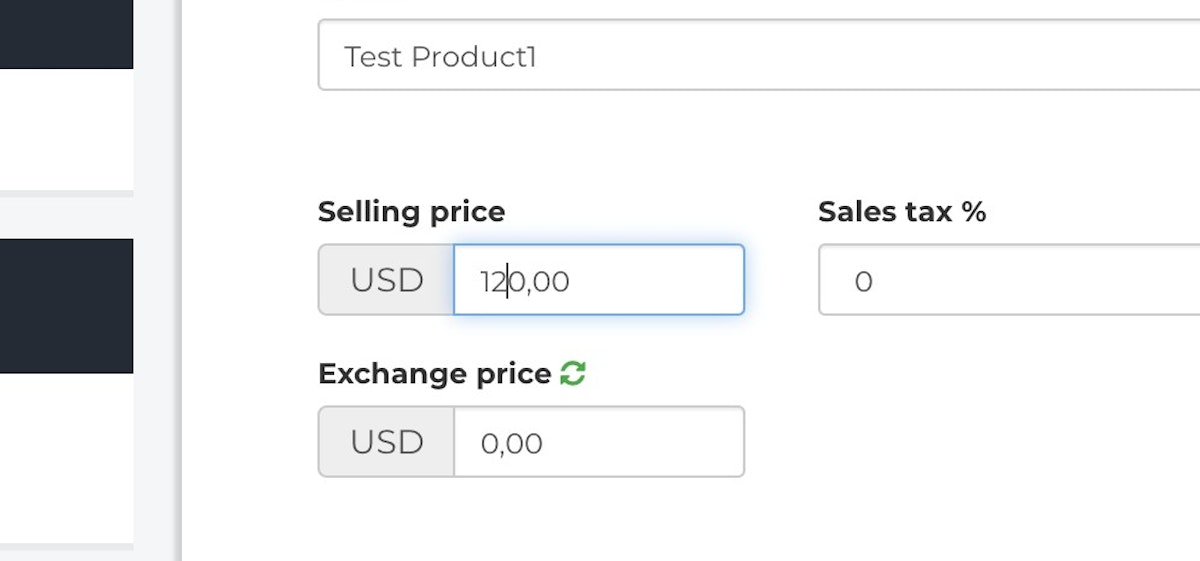
5. Fixably will provide additional options to choose from and check on the necessary option.
Enable or disable the following options based on how the product should behave:
- Fixed VAT – The product always uses its assigned Sales tax/VAT instead of what has been configured in System Settings → Tax Rates.
- Serial number tracking – Tracks a serial number for each item.
- Auto-generate serial number – Automatically assigns a randomly generated serial number when the product is received.
- Visible for customer – Controls whether the product is shown on customer-facing printouts, invoices, and the portal.
- Can be used as warranty spare part – Enables the product to be used for in-warranty repairs by enabling the “Warranty” price type. A zero price is applied by default.
- Fixed price – Prevents the product price from being updated automatically (e.g. from OEM integrations).

7. Select the Product Type and Product Category. If applicable, specify the product's Manufacturer, add Tags or other additional details. The Product types are separated into the following uses.
Service – Labor or service work provided to the customer.
Product – Physical items sold or used in repairs.
Replacement – Items provided as a replacement under warranty or agreement.
Module – Internal components or sub-parts used within a larger repair.
Transport – Charges related to shipping or logistics.
Excess – Additional charges outside standard pricing.
Other – Items that do not fall into a defined category.
Loaner – Temporary devices provided to customers during service.
Harvested – Parts sourced from harvested devices for reuse.
Buyback – Items purchased from customers.
Service Contract – Charges related to service agreements or contracts.

8. Once all relevant information is entered, click Save.

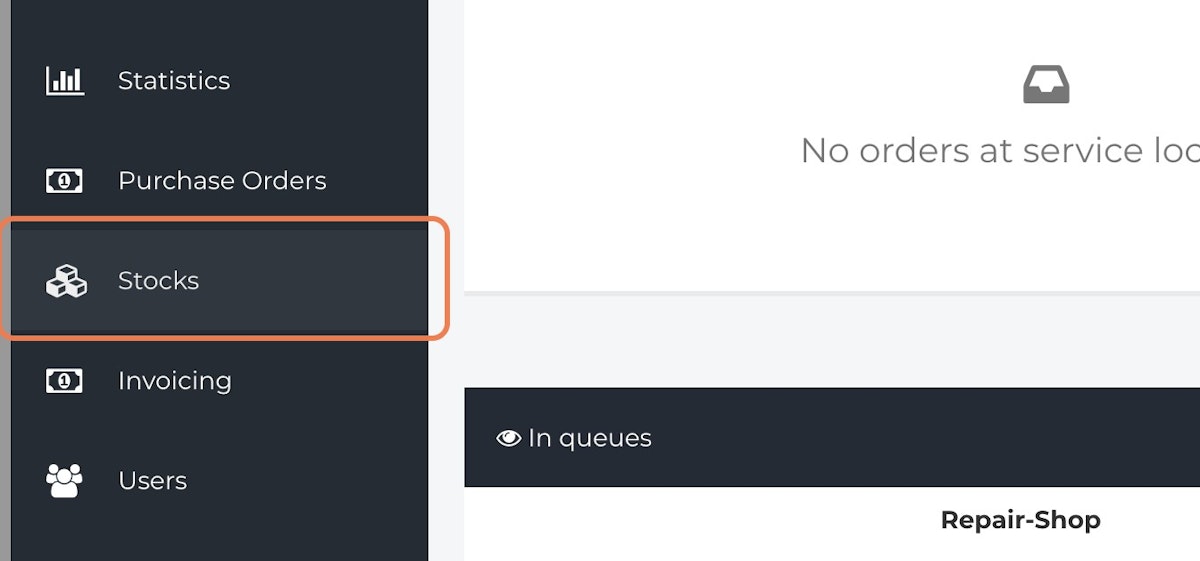
9. To view newly created or existing products, click on Stocks from the Navigation Sidebar.
10. Click on Products.
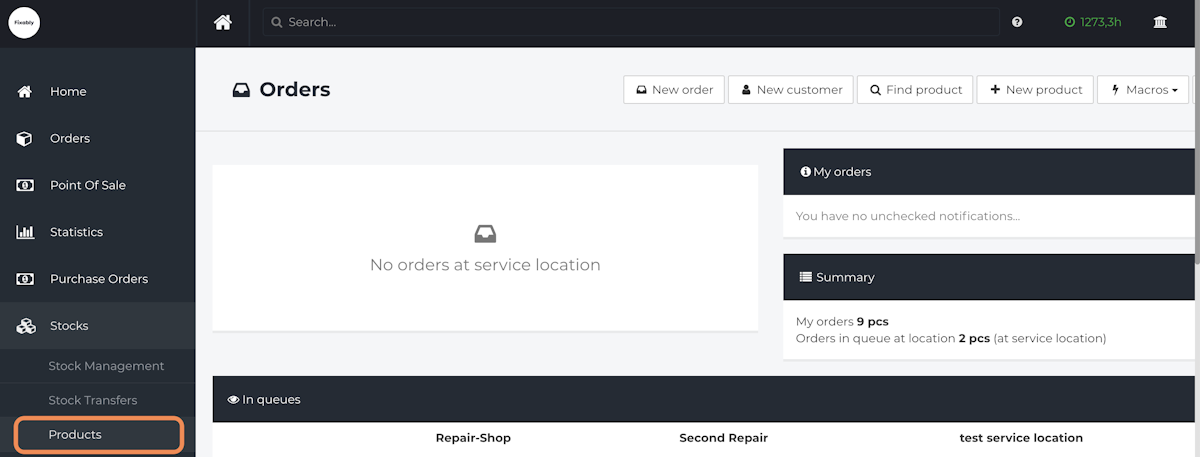
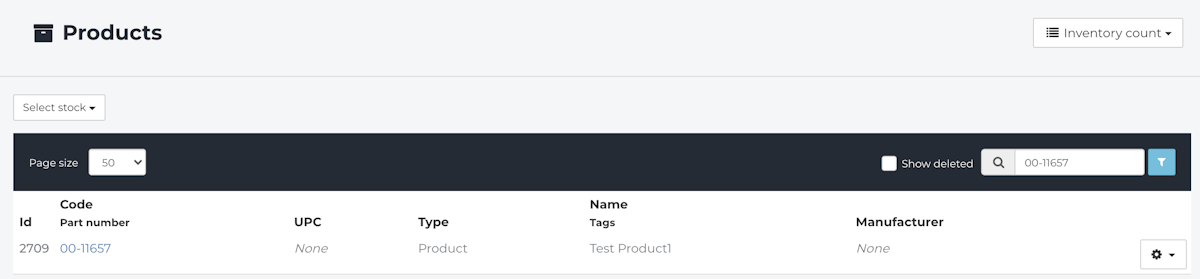
11. Search for a Product Number or Product Name to display any relevant Products.