Kako mogu koristiti Batch Edit za upravljanje isporukama za više narudžbi?
Ovaj je članak korak po korak koji će pomoći tehničarima da učinkovito koriste Fixably za grupno uređivanje pošiljaka.

Written by Annukka Matilainen
Updated at May 19th, 2026
- Bilješke o izdanju
- Nedavno objavljene značajke
- Početak rada
- Upravljanje narudžbama
- Upravljanje zaposlenicima
- Upravljanje kupcima
- Portal za korisnike
- Automatizacije
- Upravljanje zalihama
- Fakturiranje
- Izvještavanje
- Prilagođena polja
- Integracije
- GSX
- Cjenici
- Pošiljke
- Ugovori o uslugama
- Konfiguriranje vašeg okruženja
- Zahtjevi za dijelove
- Dolazna alokacija dijelova
- Rezervacija termina
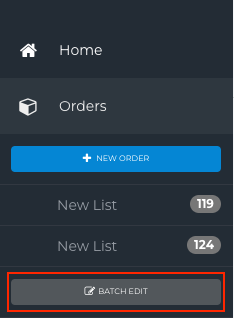
- Na bočnoj traci za navigaciju kliknite Narudžbe , a zatim Skupno uređivanje .
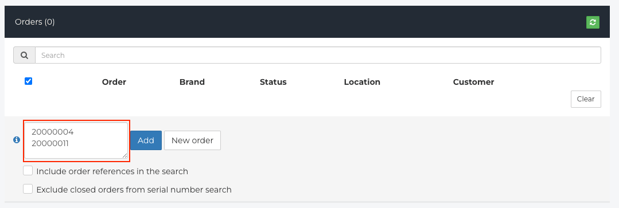
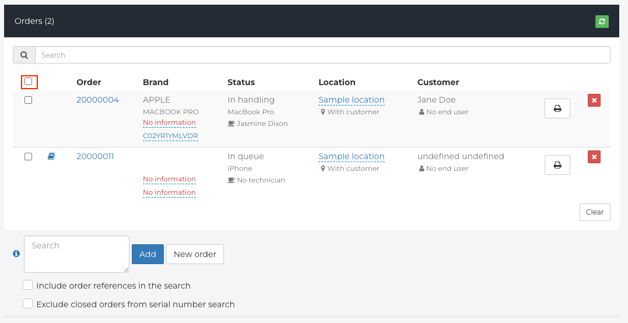
- Na ploči Batch Edit možete dodati više narudžbi za otpremu.
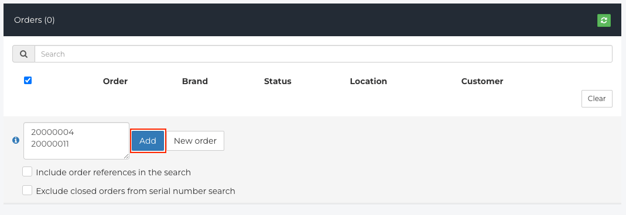
- Nakon što dodate Narudžbe na popis, kliknite Dodaj .
- Odaberite Narudžbe prije bilo kakvih izmjena ili pokretanja isporuka.
- Pomaknite se prema dolje do odjeljka Pošiljke .
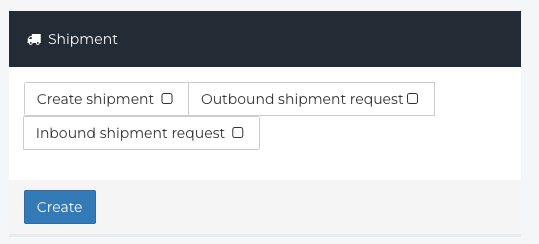
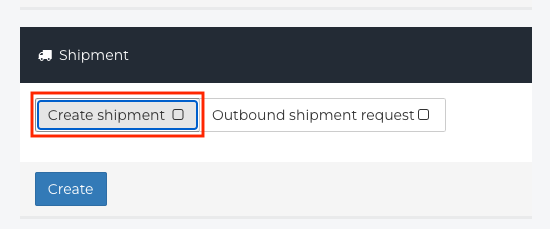
- Odaberite odgovarajuću vrstu pošiljke .
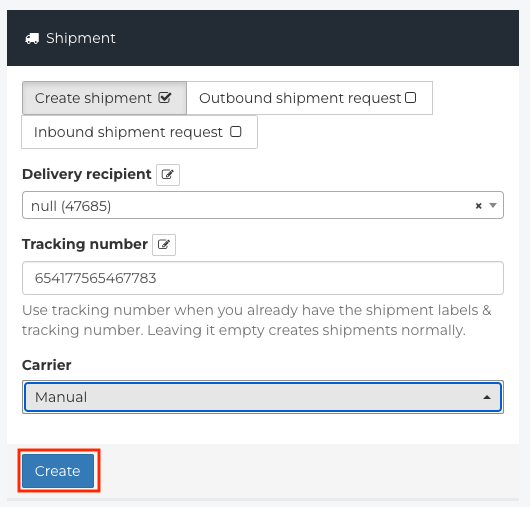
- Ispunite tražene podatke i kliknite Kreiraj .
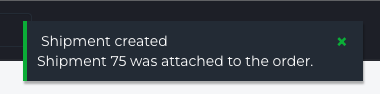
- Pojavit će se obavijest koja pokazuje da je Fixably uspješno izradio pošiljku.
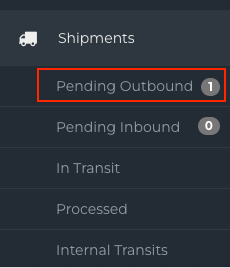
- Pošiljka će sada biti dostupna klikom na navigacijsku bočnu traku , Pošiljke i Odlazne na čekanju .